We’re excited to introduce `Add To Scene`, a new awesome tool that will let you create awesome compositions. (Note: this tool is available on the iOS and Mac versions currently. It will come soon to Android and Windows!)
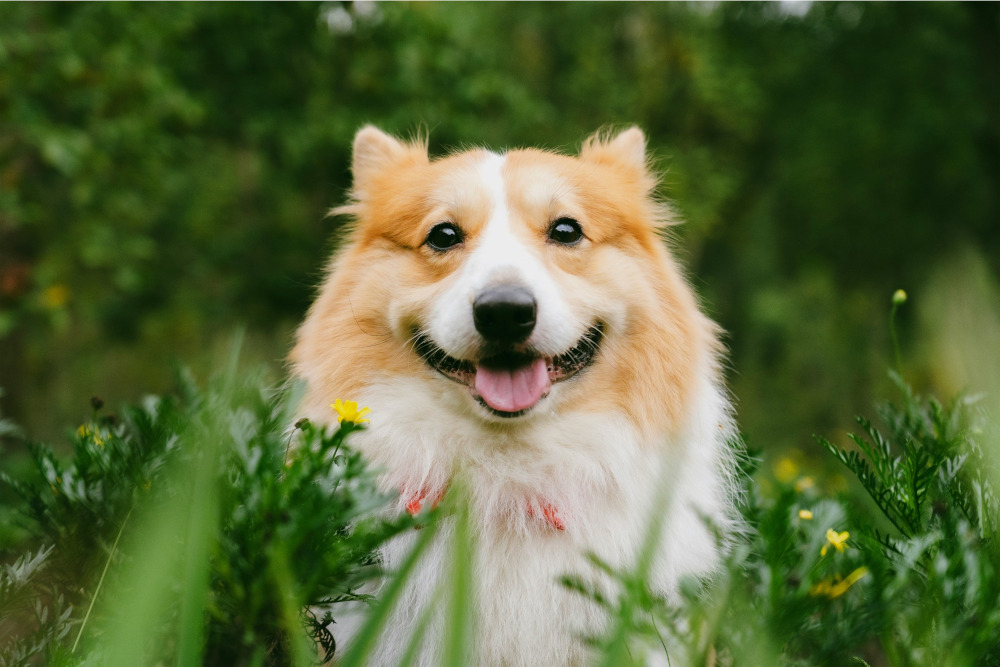
Let’s see it in action! Let’s start by choosing an input image:
We choose a nice filter (here, ‘Mulberry Tree by Van Gogh’ from AI impressionist, and get this result:
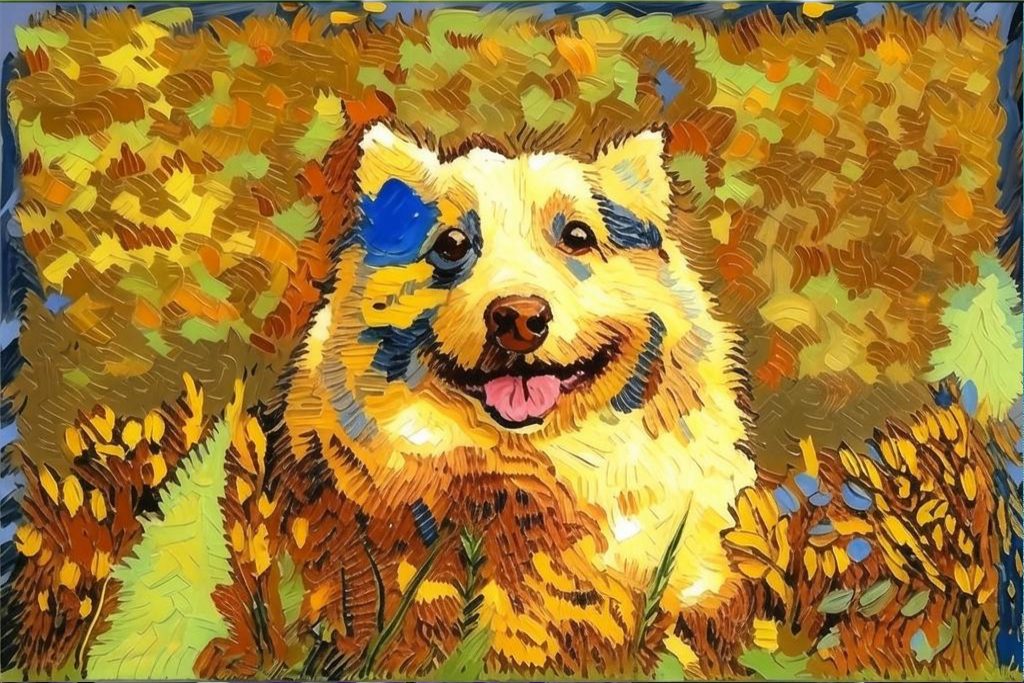
Now let’s play with ‘Add To Scene’! Click on the ‘Add to Scene’ button, and you can there choose a scene where you want to place your filtered image. We have some templates that you can choose, or you can enter a custom one from your imagination. Let’s see a few ones:
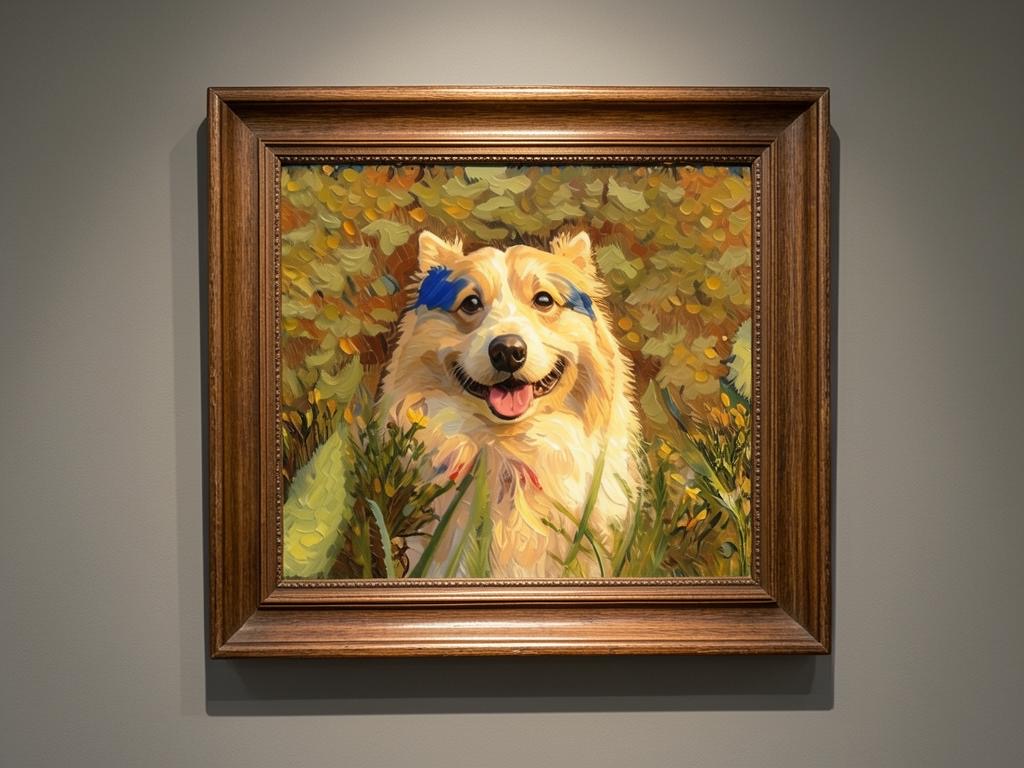
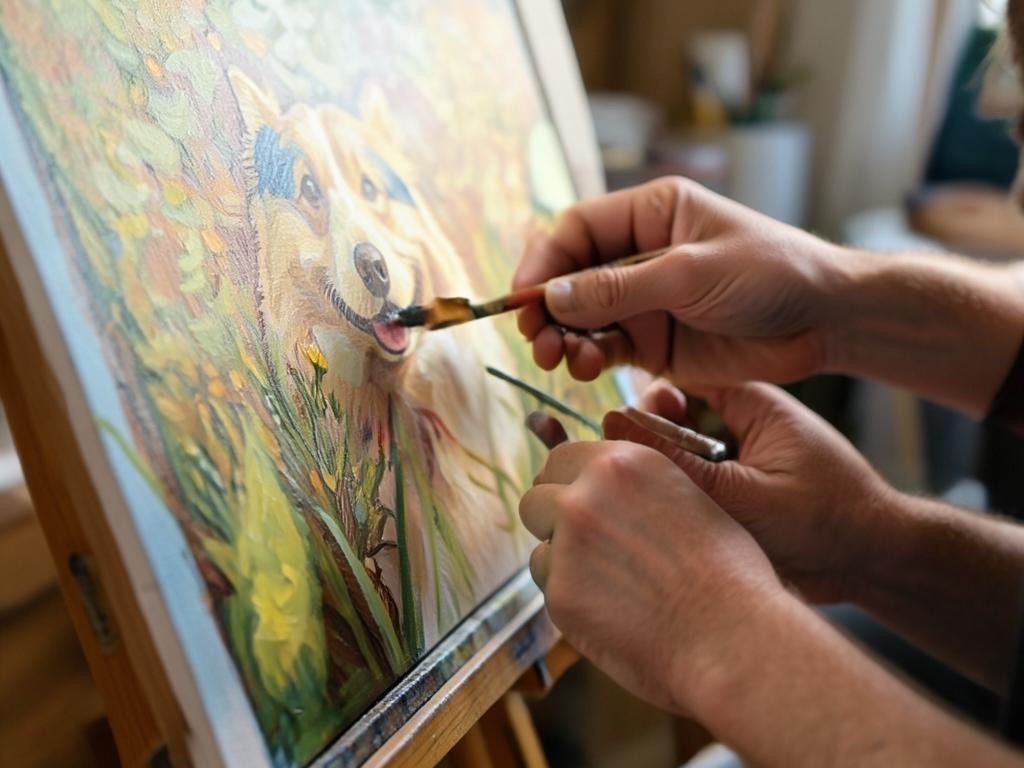
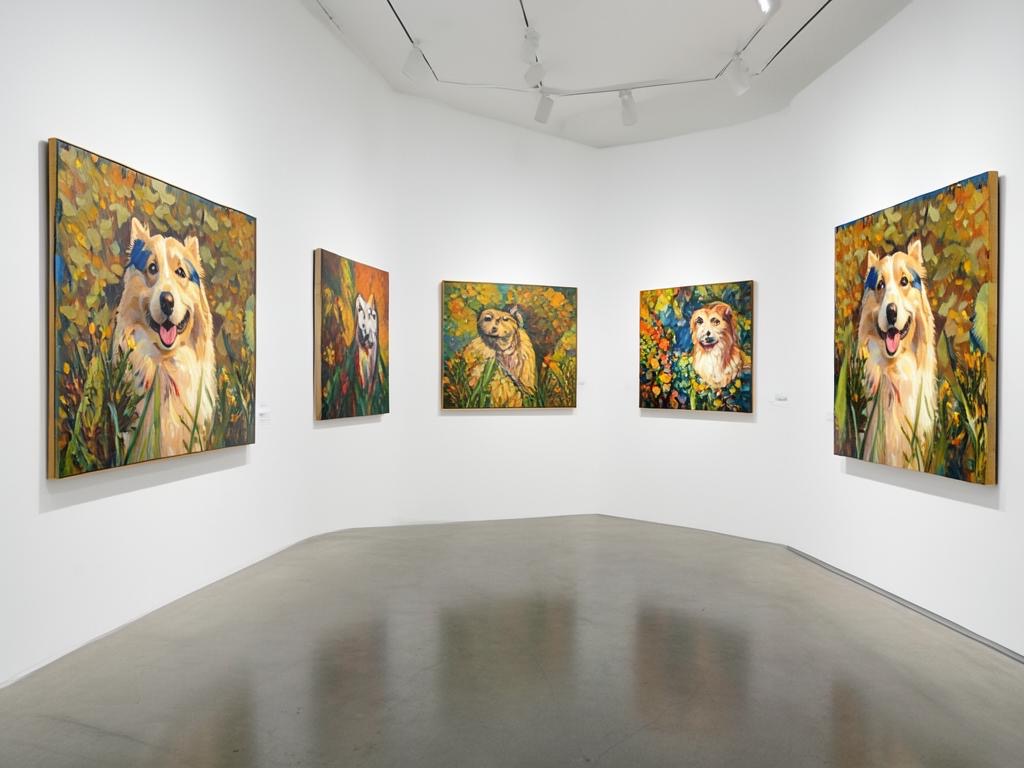
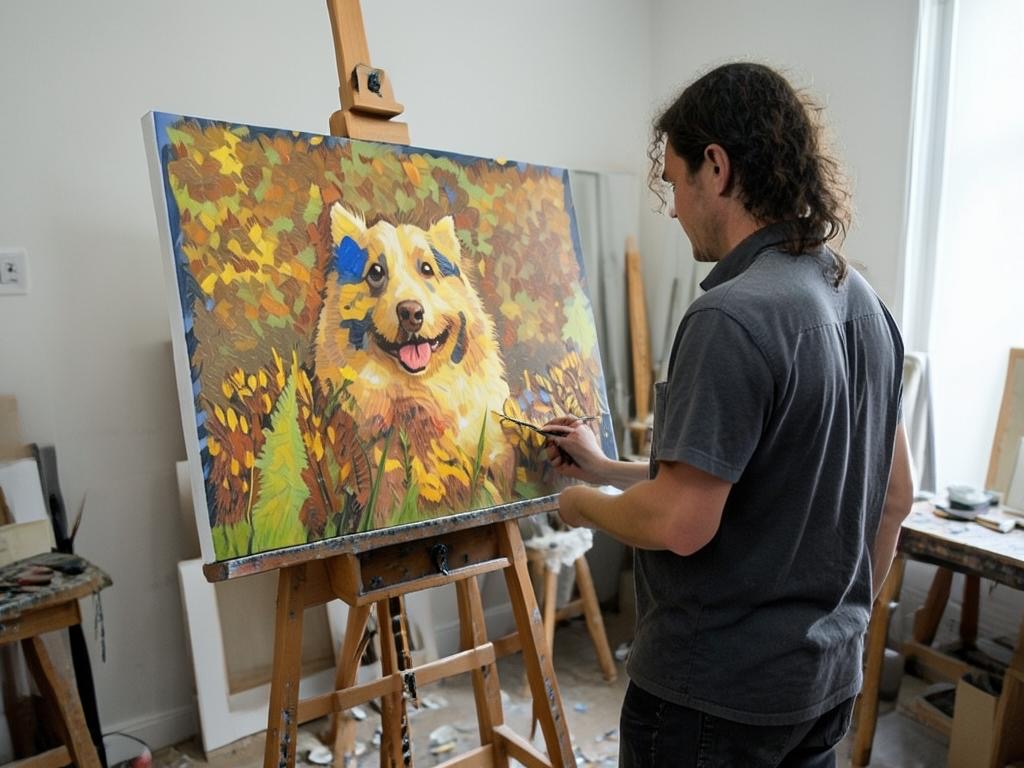
Orientation
You can also change the output orientation: For example, the same prompt as before but with ‘Portrait’ orientation gives:
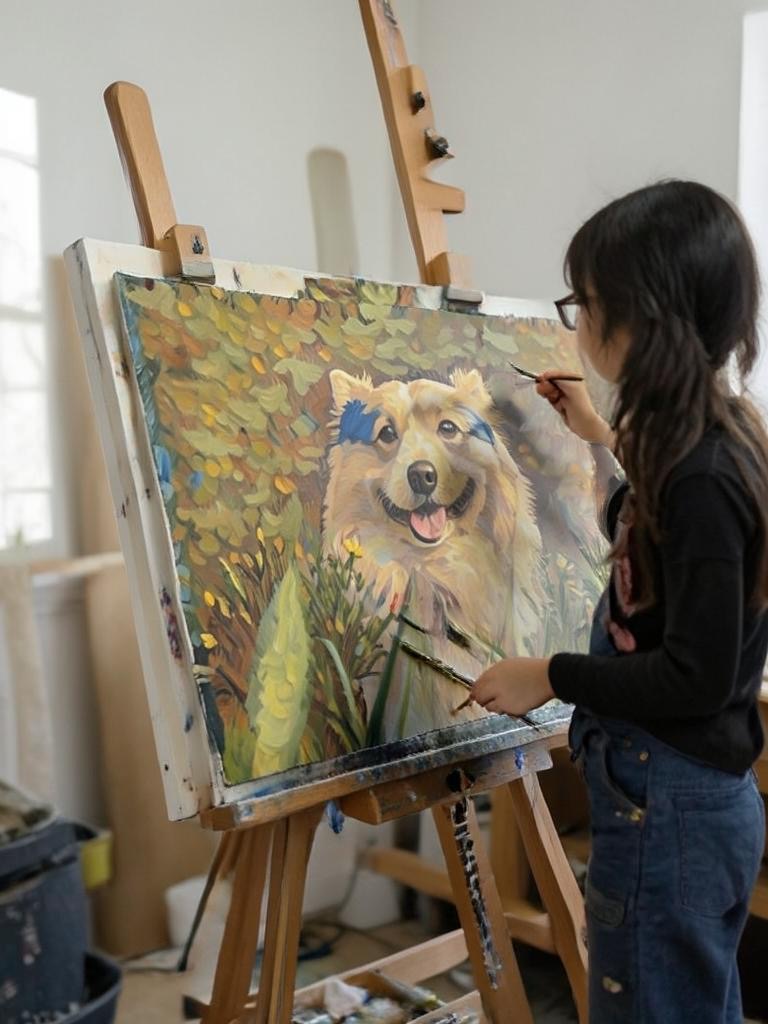
Arbitrary Edits
In fact you can use the same tool to make arbitrary edits on your result! Choose as orientation ‘Input’ so that the result is the same as the image, and input whatever you want, for example ‘Add glasses’:
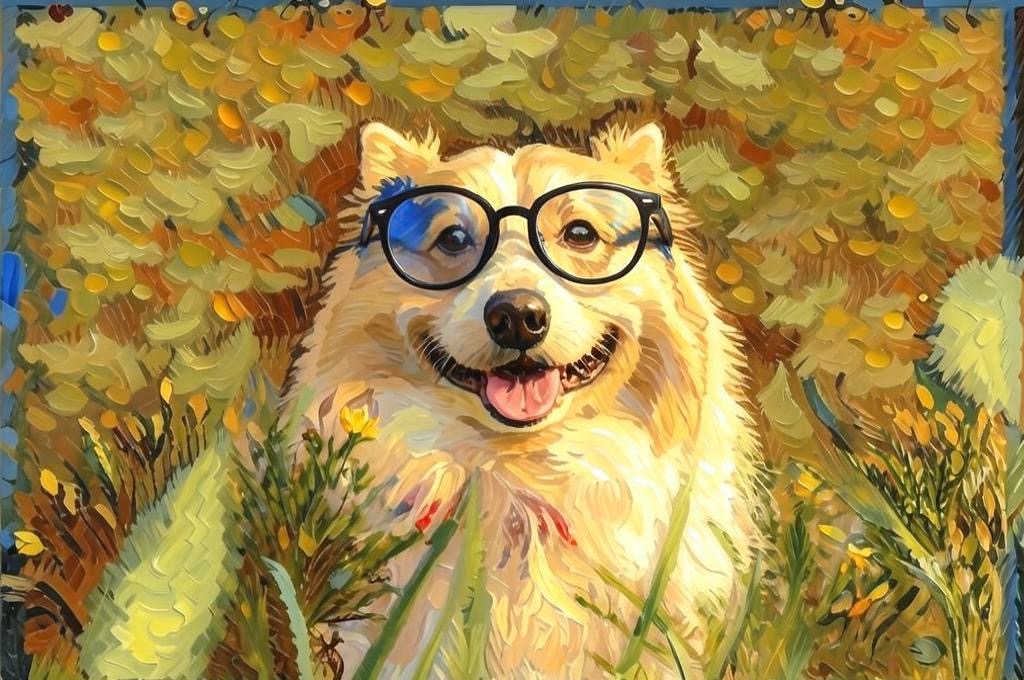
Other styles and scenes
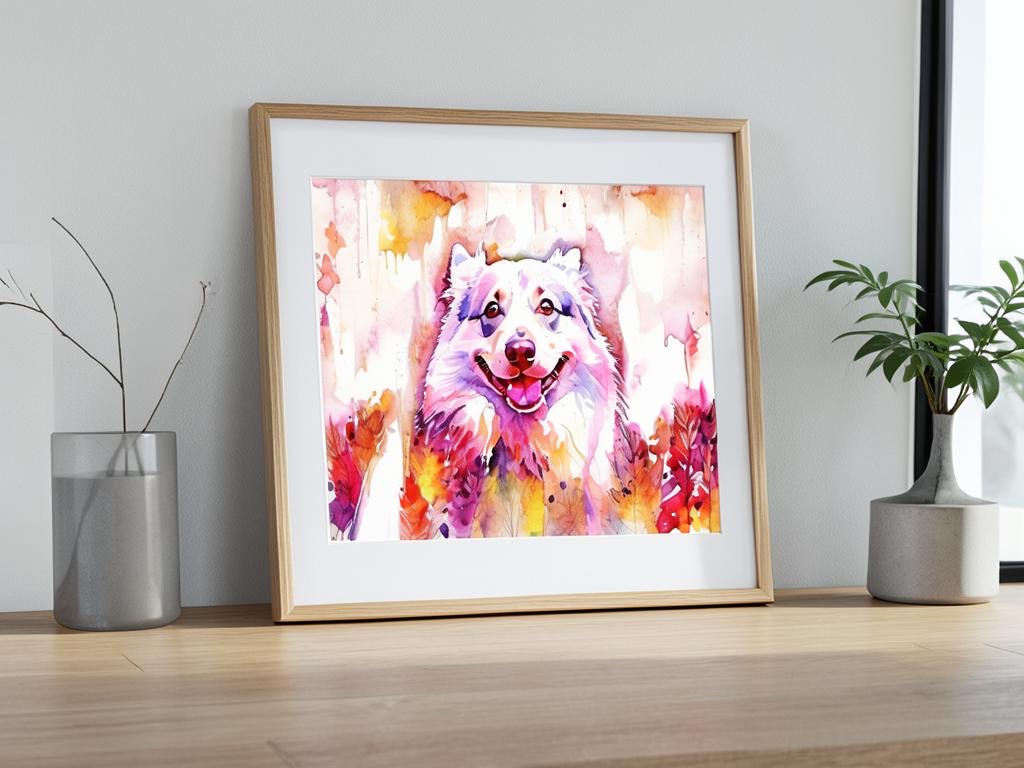
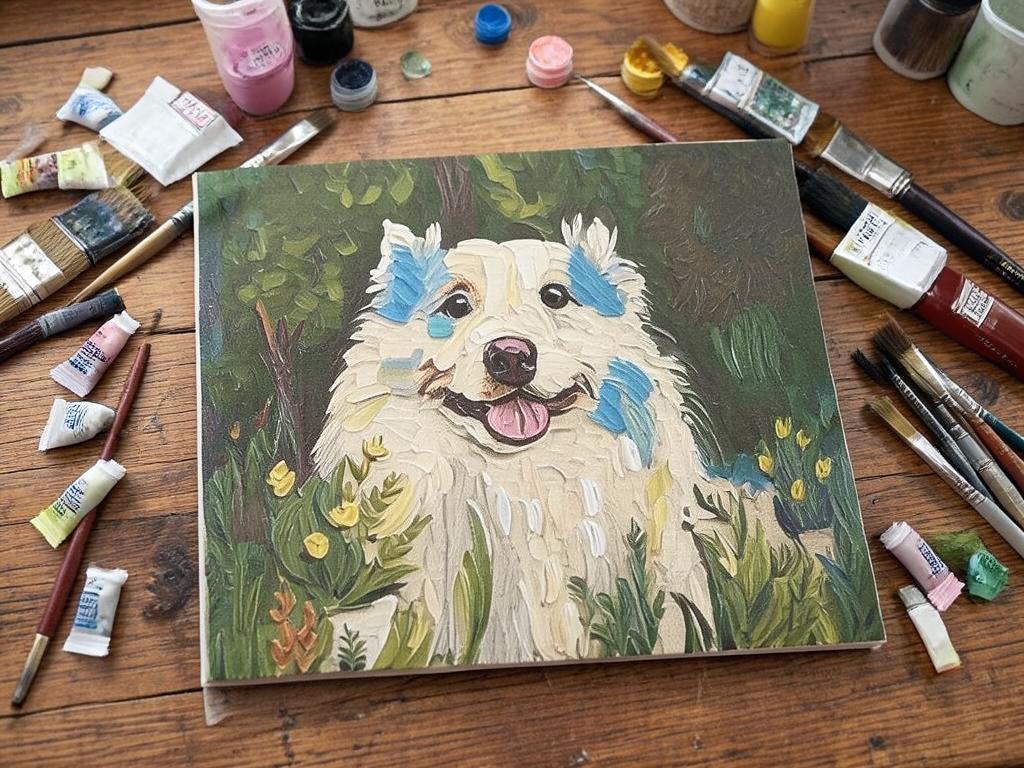
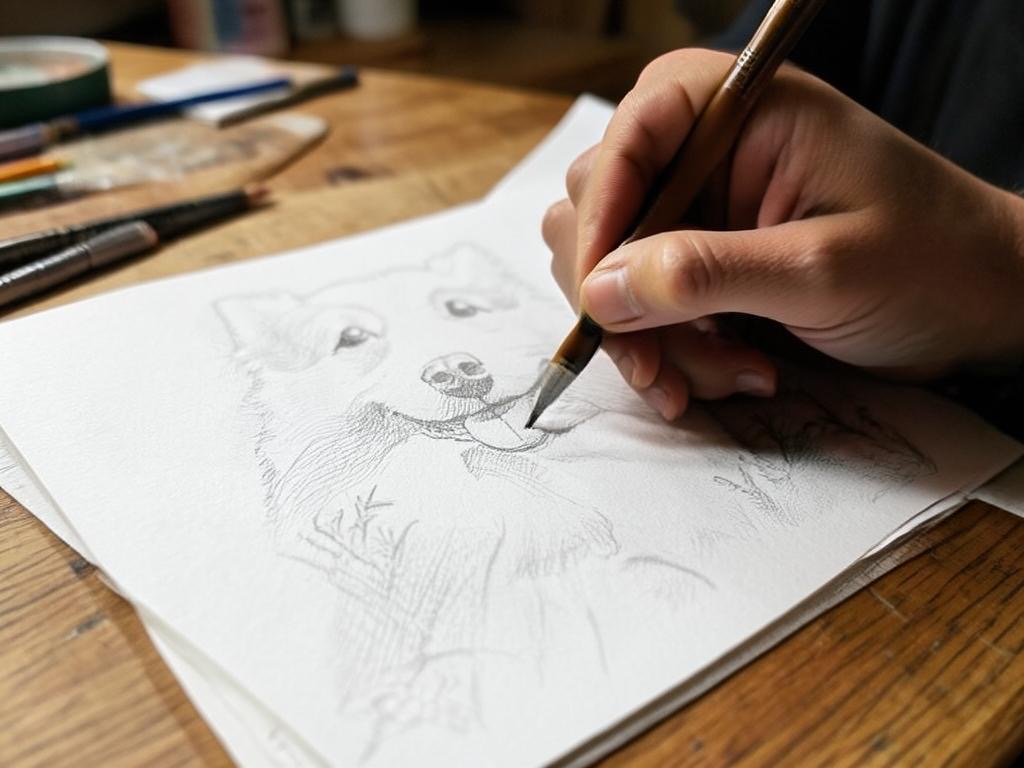
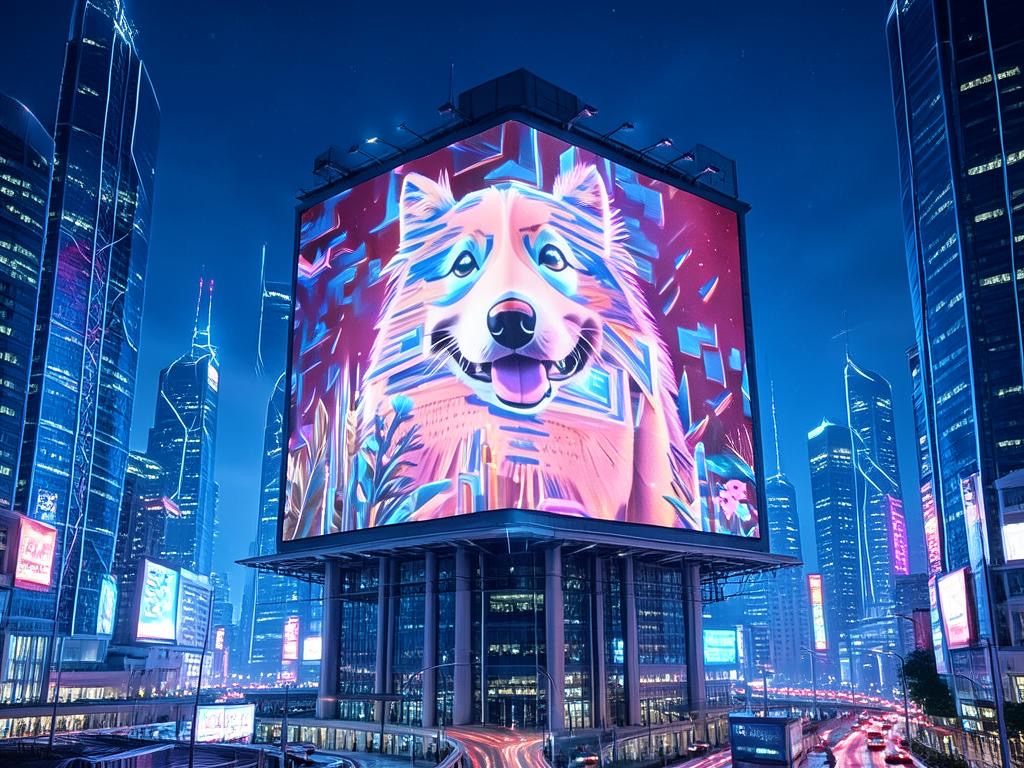
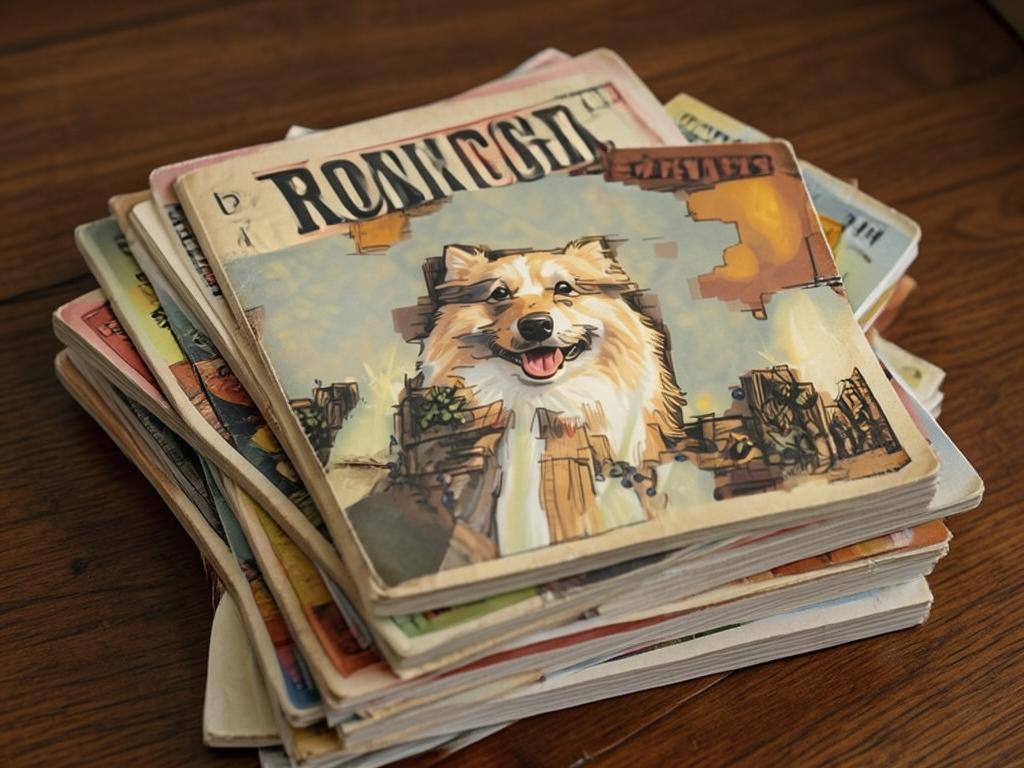
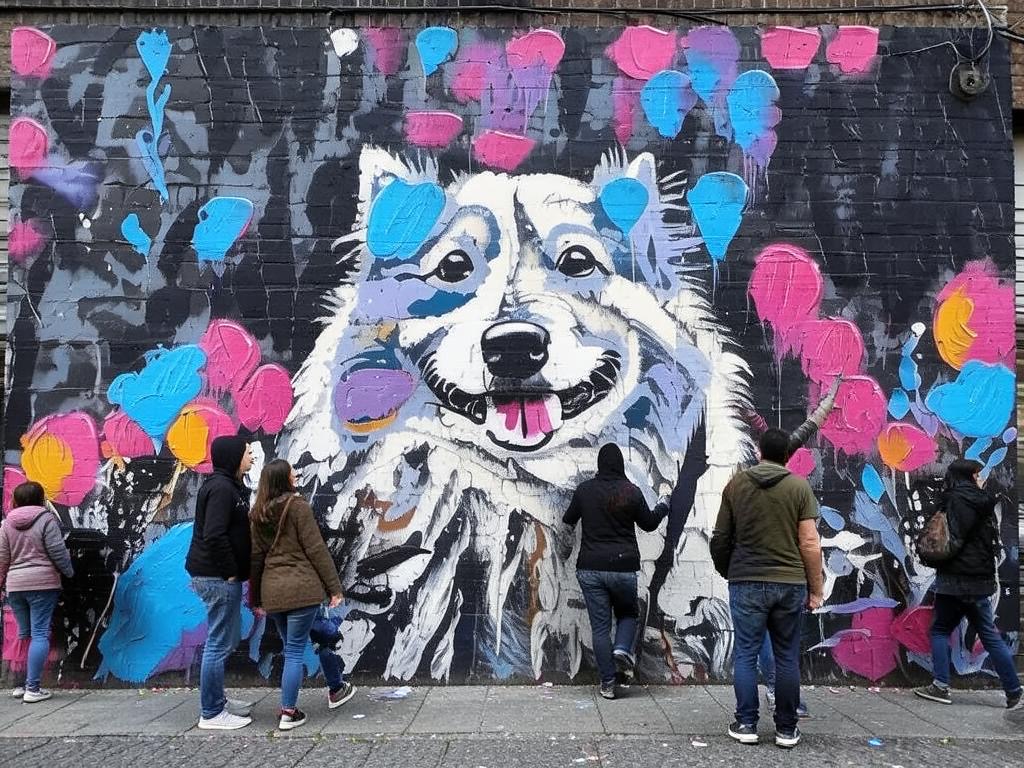
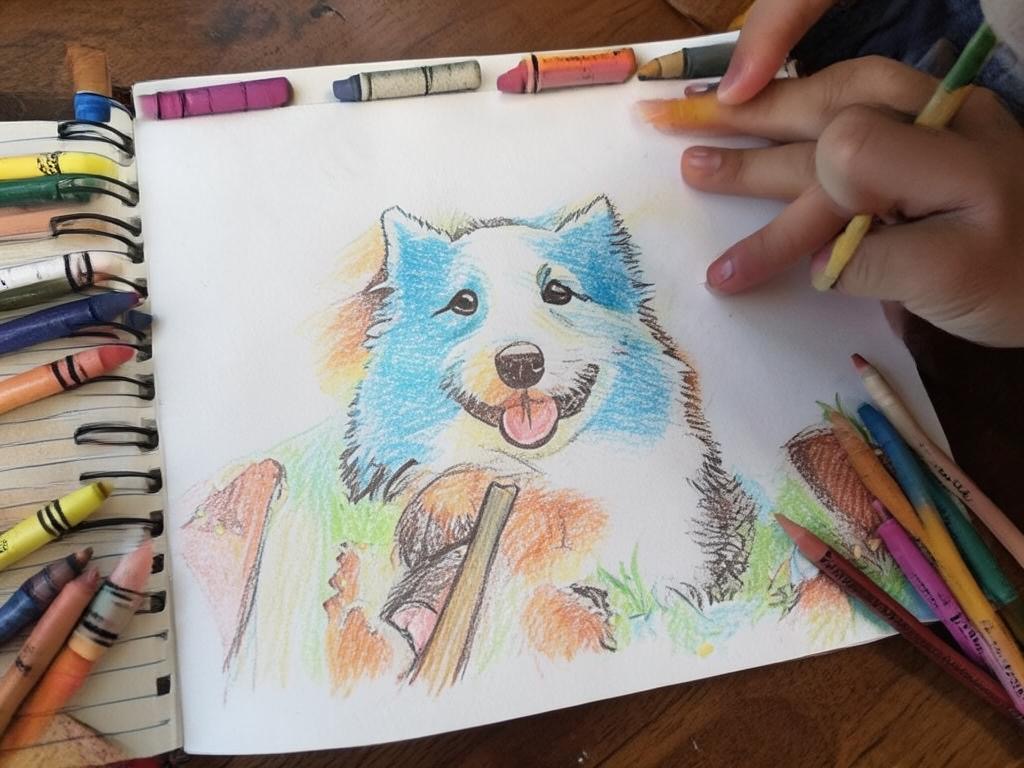
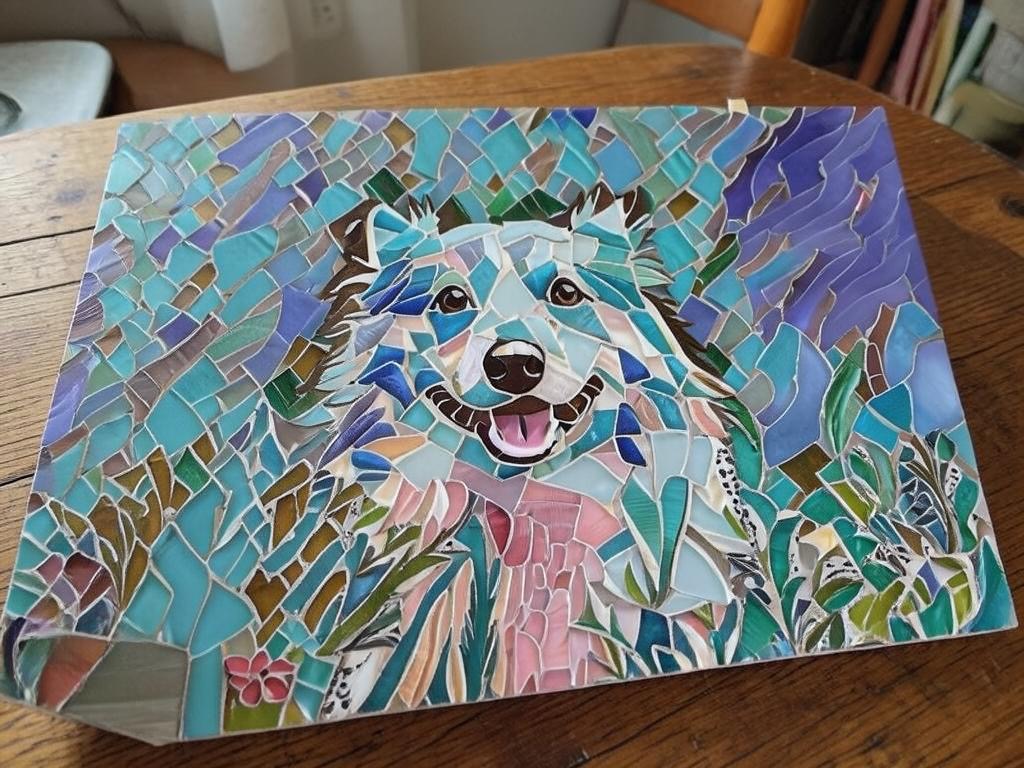
Even though we were showing artistic painting styles and scenes, you can really apply this to any scene of your imagination, and match with all our diverse range of effects and styles. Let’s look at a few cool examples:
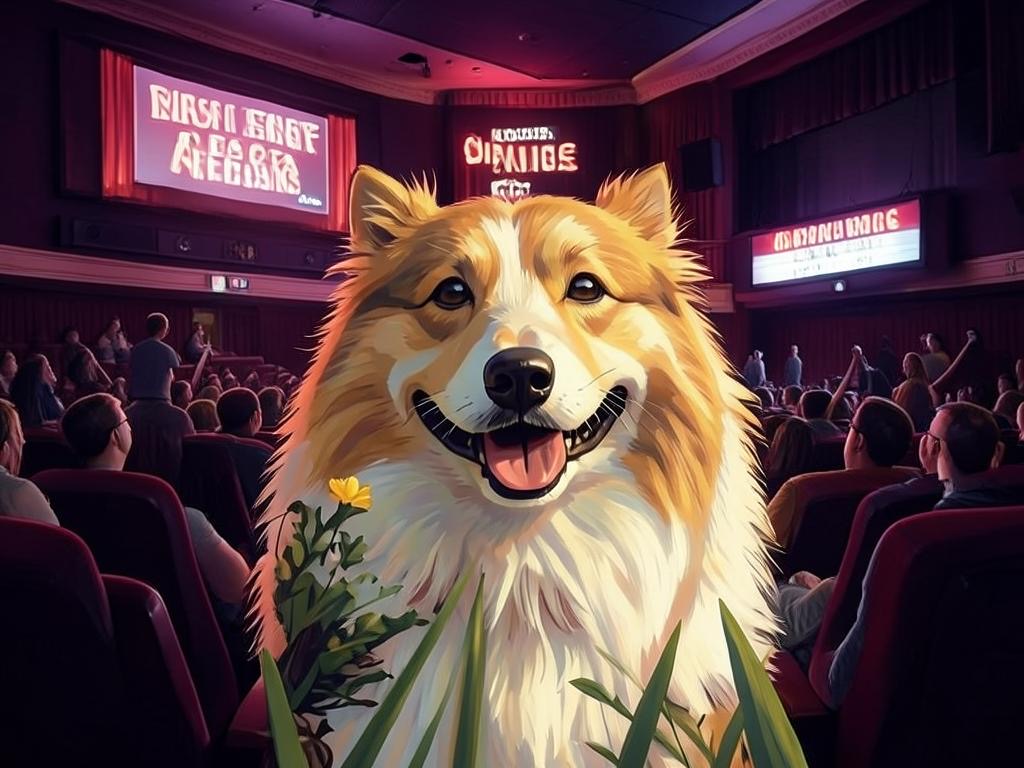
We hope you like this new tool, and continue having fun with our art apps!